Learn how to type Enye (Ñ and ñ) on Windows 11 and Windows 10 using easy keyboard shortcuts, Character Map, Alt codes, Unicode, and built-in Windows tools.
Introduction
Typing the Enye (Ñ or ñ) on a Windows computer is essential when writing Spanish or Filipino names, words, and official documents. However, many users don’t know the correct keyboard shortcuts, especially if they’re using a laptop without a numeric keypad.
The good news is that Windows 11 and Windows 10 provide several simple ways to type the Enye. Whether you’re using Character Map, keyboard shortcuts, Unicode, or the Windows Symbols panel, this guide will walk you through every method step by step.
he Windows Symbols Panel, Character Map, Microsoft Word shortcuts, Unicode, or simply copy and paste Ñ and ñ.
What Is the Enye (Ñ)?
The Enye (Ñ and ñ) is a unique letter used in the Spanish and Filipino alphabets. Although it looks similar to the letter N, the tilde (~) changes both its pronunciation and meaning.
Many official documents require the correct spelling of names. If your legal name contains Ñ, replacing it with N may cause spelling mistakes or verification issues when applying for passports, IDs, visas, school records, or government documents.
Why You Should Type the Correct Enye
Knowing how to type Enye on Windows 11 and Windows 10 helps ensure your documents remain accurate and professional. How to Type Enye on Windows 11 and Windows 10
Using the correct character can help you:
- Avoid spelling mistakes
- Match your legal documents correctly
- Fill out online government forms accurately
- Write Spanish and Filipino words correctly
- Improve professional and academic writing
Fortunately, Windows makes typing the Enye simple using several built-in tools.
How to Type Enye on Windows 11 and Windows 10
There are several easy ways to type the Enye on both Windows 11 and Windows 10. The best method depends on whether your keyboard has a numeric keypad and which application you’re using. How to Type Enye on Windows 11 and Windows 10
The most popular methods include:
- Windows Symbols Panel
- Character Map
- Alt Codes
- Microsoft Word Shortcut
- Unicode
- International Keyboard
- Copy and Paste
Let’s explore each method in detail.
Method 1 – How to Type Enye on Windows 11 and Windows 10 Using Windows Symbols Panel
The Windows Symbols Panel is one of the quickest ways to insert special characters. It works in Microsoft Word, Google Docs, browsers, email applications, and most Windows programs.
Steps
- Press Windows + . (Period).
- Click the Symbols (Ω) icon.
- Open Latin Symbols.
- Click Ñ or ñ.
- Continue typing normally.
Advantages
- No software required
- Works without a numeric keypad
- Built into Windows 11 and Windows 10
- Fast and beginner-friendly
Method 2 – How to Type Enye on Windows 11 and Windows 10 Using Character Map
Character Map is a built-in Windows utility that contains thousands of special characters, including the Enye. How to Type Enye on Windows 11 and Windows 10
Steps
- Press Windows + S.
- Search for Character Map.
- Open the application.
- Find Ñ or ñ.
- Click Select.
- Click Copy.
- Paste the character into your document.
Why Use Character Map?
- Works on every Windows computer
- Doesn’t require a numeric keypad
- Great for beginners
- Supports hundreds of special characters
Method 3 – How to Type Enye on Windows 11 and Windows 10 Using Alt Codes
If your keyboard has a numeric keypad, Alt codes provide one of the fastest methods.
Small Enye (ñ)
Hold the Alt key and type:
Alt + 164
Result:
ñ
Capital Enye (Ñ)
Hold the Alt key and type:
Alt + 165
Result:
Ñ
Benefits of Alt Codes
- Extremely fast
- Works in most Windows applications
- No internet required
- Perfect for desktop keyboards
Note: Alt codes require a dedicated numeric keypad. If you’re using a laptop without one, use the next method instead.
Method 4 – How to Type Enye on Windows 11 and Windows 10 Without a Numeric Keypad
Many laptops don’t include a dedicated numeric keypad, but you can still type the Enye using several easy alternatives. Windows provides built-in tools that work on almost every laptop without requiring any additional software. How to Type Enye on Windows 11 and Windows 10
Option 1: Use the Windows Symbols Panel
- Press Windows + . (Period).
- Select the Symbols (Ω) tab.
- Open Latin Symbols.
- Click Ñ or ñ.
Option 2: Use Character Map
- Press Windows + S.
- Search for Character Map.
- Locate Ñ or ñ.
- Click Select → Copy.
- Paste it where needed.
Option 3: Enable the International Keyboard
Once enabled, you can type the Enye using simple key combinations without needing a numeric keypad.
Advantages
- Ideal for laptops
- No external keyboard required
- Works across most Windows applications
- Simple for everyday typing
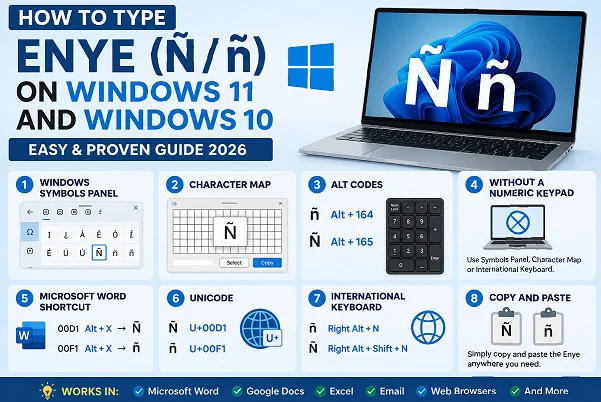
Method 5 – How to Type Enye on Windows 11 and Windows 10 in Microsoft Word
Microsoft Word includes a built-in shortcut that lets you insert the Enye quickly without memorizing Alt codes.
Steps
- Place the cursor where you want the Enye.
- Type the Unicode value:
- 00D1 for Ñ
- 00F1 for ñ
- Press Alt + X.
- Word instantly converts the code into the Enye.
Example
| Type | Press | Result |
| 00D1 | Alt + X | Ñ |
| 00F1 | Alt + X | ñ |
Why Use This Method?
- Very fast in Microsoft Word
- No numeric keypad needed
- Works perfectly for reports and documents
- Great for students and office users
Method 6 – How to Type Enye on Windows 11 and Windows 10 Using Unicode
Unicode provides another reliable way to insert the Enye in applications that support Unicode input.
Unicode Values
| Character | Unicode |
| Ñ | U+00D1 |
| ñ | U+00F1 |
Some advanced editors allow you to insert these Unicode values directly, while Microsoft Word converts them using Alt + X.
Advantages
- International standard
- Accurate character encoding
- Useful for developers and technical users
- Works in Unicode-supported software
Method 7 – How to Type Enye on Windows 11 and Windows 10 Using the International Keyboard
If you frequently type in Spanish or Filipino, enabling the United States–International Keyboard is one of the best long-term solutions.
How to Enable It
- Open Settings.
- Go to Time & Language.
- Select Language & Region.
- Choose your language.
- Click Language Options.
- Add the United States–International Keyboard.
Keyboard Shortcuts
| Character | Keys |
| ñ | Right Alt + N |
| Ñ | Right Alt + Shift + N |
On some keyboard layouts, you can also type ~, then N to create Ñ.
Benefits
- Best for frequent typing
- Quick once configured
- Works across Windows
- Ideal for bilingual users

Method 8 – How to Type Enye on Windows 11 and Windows 10 by Copy and Paste
If you only need the Enye occasionally, copying and pasting is the easiest option.
Characters to Copy
Capital Enye
Ñ
Small Enye
ñ
Simply copy the character and paste it into:
- Microsoft Word
- Google Docs
- Excel
- Web forms
- Social media
- PDF editors
Advantages
- Fastest method for occasional use
- Works on every Windows computer
- No keyboard shortcuts to remember
- Beginner-friendly
Common Problems and Solutions
Even though typing the Enye is simple, some users may run into minor issues. Here are the most common problems and their fixes.
| Problem | Solution |
| Alt code doesn’t work | Make sure Num Lock is enabled and use the numeric keypad. |
| Laptop has no numpad | Use the Symbols Panel, Character Map, or International Keyboard. |
| Wrong character appears | Verify you’re using the correct Alt code (164 or 165). |
| Word shortcut doesn’t work | Type the Unicode value first, then press Alt + X. |
| Symbols Panel won’t open | Update Windows or restart your PC. |
Following these tips usually resolves Enye typing issues in just a few minutes.
Keyboard Shortcut Comparison Table
Choosing the right method depends on your keyboard and how often you type the Enye. The table below compares all the popular methods available in Windows 11 and Windows 10.
| Method | Windows 11 | Windows 10 | Numpad Required | Difficulty | Best For |
| Windows Symbols Panel | ✅ | ✅ | ❌ | Easy | Quick typing anywhere |
| Character Map | ✅ | ✅ | ❌ | Easy | Beginners |
| Alt Codes | ✅ | ✅ | ✅ | Easy | Desktop keyboards |
| Microsoft Word (Alt + X) | ✅ | ✅ | ❌ | Easy | Microsoft Word users |
| Unicode | ✅ | ✅ | ❌ | Medium | Developers & advanced users |
| International Keyboard | ✅ | ✅ | ❌ | Medium | Frequent Spanish/Filipino typing |
| Copy & Paste | ✅ | ✅ | ❌ | Very Easy | Occasional use |
Quick Recommendation
- Desktop PC with a numeric keypad: Use Alt Codes.
- Laptop without a numpad: Use the Windows Symbols Panel.
- Microsoft Word: Use the Alt + X shortcut.
- Frequent Enye typing: Enable the International Keyboard.
(FAQs)
How do I type Ñ on Windows 11?
You can type Ñ by using Alt + 165 on a numeric keypad, opening the Windows Symbols Panel (Windows + .), or using Character Map.
How do I type ñ on Windows 10?
Use Alt + 164, the Windows Symbols Panel, Character Map, or the International Keyboard to type ñ.
Can I type the Enye on a laptop without a numeric keypad?
Yes. You can use the Windows Symbols Panel, Character Map, Microsoft Word’s Alt + X shortcut, or enable the International Keyboard.
What are the Alt codes for the Enye?
- Alt + 164 = ñ
- Alt + 165 = Ñ
Conclusion
Learning how to type Enye on Windows 11 and Windows 10 is easy once you know the right method. Whether you prefer Alt codes, the Windows Symbols Panel, Character Map, Microsoft Word shortcuts, Unicode, or the International Keyboard, Windows provides several built-in ways to insert Ñ and ñ quickly. How to Type Enye on Windows 11 and Windows 10
If you only type the Enye occasionally, the Symbols Panel or Copy & Paste method is the simplest choice. For regular Spanish or Filipino typing, enabling the International Keyboard offers the fastest long-term solution. Choose the method that best matches your keyboard and workflow, and you’ll be able to type the Enye accurately in any Windows application.