Learn how to type enye on a laptop without a numpad using keyboard shortcuts, Character Map, copy-paste, and built-in tools. Easy step-by-step guide.
Introduction
If you’re wondering how to type Enye on a laptop without a numpad, you’re not alone. Many modern laptops no longer include a dedicated numeric keypad, making traditional Alt code shortcuts impossible to use. This often becomes a problem when typing Filipino names, Spanish words, or official documents.
The good news is that you don’t need a numpad to type Ñ or ñ. Windows, Mac, Chromebook, and Microsoft Word all offer simple methods that work in just a few seconds. In this guide, you’ll learn every easy way to type the Enye on your laptop, even if your keyboard doesn’t have a numeric keypad.
Table of Contents
- What Is the Enye (Ñ)?
- Why Is the Enye Important?
- Can You Type Enye Without a Numpad?
- Quick Answer
- Method 1 – Windows Emoji & Symbols Panel
- Method 2 – Character Map
- Method 3 – Microsoft Word Shortcut
- Method 4 – Unicode Shortcut
- Method 5 – Copy and Paste
- More Methods (Mac, Chromebook & Mobile)
What Is the Enye (Ñ)?
The Enye (Ñ or ñ) is a special alphabet letter used mainly in the Spanish and Filipino languages. Although it looks similar to the letter N, the tilde (~) above it changes both the pronunciation and the meaning of many words.
Using the correct Enye is important when writing names, addresses, official documents, school assignments, and legal records. Replacing Ñ with N can sometimes create spelling mistakes or incorrect information.
Why Is the Enye Important?
Many government forms, passports, birth certificates, and school records require the correct spelling of names. If your name includes the Enye, using a normal N may cause mismatched records or verification issues.
Learning how to type Enye on a laptop without a numpad ensures your documents stay accurate and professional. It also saves time whenever you need to enter special characters online.
Can You Type Enye Without a Numpad?
Yes! Even if your laptop doesn’t have a numeric keypad, you can still type the Enye using several built-in Windows features, keyboard shortcuts, or Unicode methods.
These methods are free, easy to use, and work on most modern laptops. You don’t need to install any third-party software to type Ñ or ñ.
Quick Answer: How to Type Enye on a Laptop Without a Numpad
If you’re looking for the fastest solution, here are the easiest methods:
| Device | Best Method |
| Windows 11 | Windows Symbols Panel |
| Windows 10 | Character Map |
| Microsoft Word | Ctrl + Shift + ~ then N |
| Mac | Option + N then N |
| Chromebook | Copy & Paste or Google Input Tools |
Choose the method that matches your device for the quickest results.
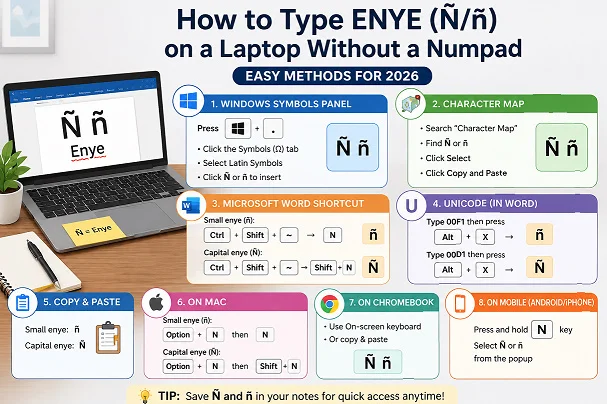
Method 1 – Use the Windows Emoji & Symbols Panel
The Windows Emoji & Symbols Panel is one of the easiest ways to type the Enye without using a numpad. It’s already built into Windows 10 and Windows 11, so there’s nothing extra to install.
This method works in Microsoft Word, Google Docs, web browsers, emails, chat apps, and many other programs. It’s ideal if you only need to type the Enye occasionally.
Steps
- Press Windows + . (Period).
- Select the Symbols (Ω) tab.
- Open the Latin Symbols category.
- Click Ñ or ñ.
- The character will appear where your cursor is placed.
Why Choose This Method?
- No software required.
- Works without a numpad.
- Fast and beginner-friendly.
- Compatible with most Windows applications.
Method 2 – Type Enye Using Character Map
Character Map is another built-in Windows tool that lets you copy and insert special characters, including the Enye. It’s a reliable option if keyboard shortcuts don’t work on your laptop.
You can also use Character Map to find many other symbols, making it useful for students, office workers, and anyone who frequently types special characters.
Steps
- Press Windows + S.
- Search for Character Map.
- Open the application.
- Locate Ñ or ñ.
- Click Select.
- Click Copy.
- Paste it into your document.
Advantages
- Available on all Windows PCs.
- Doesn’t require a numpad.
- Easy for beginners.
- Supports hundreds of special characters.
Method 3 – Type Enye in Microsoft Word
If you work in Microsoft Word, you can type the Enye using a built-in keyboard shortcut. This method is much faster than opening Character Map every time you need the character.
It works in most versions of Microsoft Word and Microsoft Office, making it one of the best choices for students and professionals.
Small Enye (ñ)
Press:
Ctrl + Shift + ~
Release the keys, then press:
N
Result:
ñ
Capital Enye (Ñ)
Press:
Ctrl + Shift + ~
Release the keys, then press:
Shift + N
Result:
Ñ
Method 4 – Use Unicode Shortcuts
Unicode shortcuts provide another easy way to insert the Enye in Microsoft Word. You simply type a Unicode value and convert it into the correct character with one keyboard shortcut.
This method is especially useful for users who regularly work with multilingual documents or special symbols.
Small Enye
Type:
00F1
Then press:
Alt + X
Result:
ñ
Capital Enye
Type:
00D1
Then press:
Alt + X
Result:
Ñ
Method 5 – Copy and Paste Enye
If you only need the Enye once in a while, copying and pasting is the quickest solution. Simply copy the character below and paste it wherever you need it.
Small Enye
ñ
Capital Enye
Ñ
This method works on any laptop, browser, document editor, or operating system.
Method 6 – How to Type Enye on a Mac Laptop
Typing the Enye on a Mac laptop is much easier than on Windows. Apple includes a built-in keyboard shortcut that works in almost every application, including Pages, Microsoft Word, Notes, Safari, and Google Docs.
If you regularly write Spanish or Filipino text, this shortcut is the fastest way to type Ñ and ñ without installing any additional software.
Small Enye (ñ)
- Press Option + N.
- Release both keys.
- Press N.
Result: ñ
Capital Enye (Ñ)
- Press Option + N.
- Release both keys.
- Press Shift + N.
Result: Ñ
Why Use This Method?
- Works on all modern MacBooks.
- No additional software needed.
- Fast and easy to remember.
- Works in most Mac applications.
Method 7 – How to Type Enye on a Chromebook
If you’re using a Chromebook, you won’t find traditional Windows Alt codes. However, there are still several easy ways to type the Enye without a numpad.
The easiest methods include using the on-screen keyboard, Google Input Tools, or simply copying and pasting the character when needed.
Option 1: Use the On-Screen Keyboard
- Open Settings.
- Go to Accessibility.
- Enable the On-Screen Keyboard.
- Select Ñ or ñ from the available symbols.
Option 2: Copy and Paste
Copy either of these characters:
- Ñ
- ñ
Then paste them into your document or browser.
Why Chromebook Users Prefer These Methods
- No extensions required.
- Works in Google Docs.
- Easy for beginners.
- Compatible with ChromeOS.
Method 8 – Enable Hidden Num Lock on Your Laptop
Some laptops don’t have a separate numeric keypad, but they include a hidden one built into the letter keys. If your laptop supports this feature, you may still be able to use traditional Alt codes.
This option is available on many Dell, HP, Lenovo, Acer, ASUS, and older laptop models with embedded number keys.
Steps
- Look for the Num Lock (NumLk) key.
- Press Fn + NumLk if required.
- Use the embedded number keys.
- Type the desired Alt code.
Note
Not every laptop includes a hidden numeric keypad. If yours doesn’t, use one of the other methods in this guide.
Method 9 – Use Windows Character Viewer (Alternative)
Windows also offers other built-in tools for inserting special symbols. These tools are useful if Character Map isn’t available or you need additional Unicode characters.
Simply search for Character Map or Character Viewer from the Start menu and copy the Enye character into your document.
This method is reliable and works across different versions of Windows.
Method 10 – Type Enye on Android Phones
Typing the Enye on Android devices is very simple because most keyboards include special characters through a long press.
Whether you’re using Gboard or Samsung Keyboard, the process takes only a few seconds.
Steps
- Open your keyboard.
- Press and hold the N key.
- Select Ñ from the popup menu.
For lowercase, simply select ñ.
Method 11 – Type Enye on iPhone and iPad
Apple’s iPhone and iPad keyboards also include the Enye as a hidden character.
You only need to hold the letter N until additional characters appear.
Steps
- Open any typing app.
- Press and hold N.
- Slide to Ñ or ñ.
- Release your finger.
The Enye will be inserted automatically.
Common Problems When Typing Enye
Sometimes the Enye shortcut may not work correctly. This usually happens because of keyboard settings, application limitations, or incorrect keyboard layouts.
Fortunately, most problems can be fixed within a few minutes.
Problem 1: Keyboard Shortcut Doesn’t Work
Possible causes include:
- Wrong keyboard layout.
- Unsupported application.
- Incorrect shortcut combination.
Solution: Check your keyboard language and try another method from this guide.
Problem 2: Alt Codes Don’t Work
Traditional Alt codes require a numeric keypad. If your laptop doesn’t have one, those shortcuts won’t function normally.
Instead, use Character Map, the Windows Symbols Panel, or Microsoft Word shortcuts.
Problem 3: Wrong Character Appears
If another symbol appears instead of the Enye, your keyboard layout may be set to the wrong language.
Go to your operating system’s Language & Keyboard Settings and select the correct keyboard layout.
Pro Tips for Typing Enye Faster
If you frequently type Filipino or Spanish text, a few simple habits can save you time.
- Save Ñ and ñ in a notes app.
- Learn one shortcut for your device.
- Keep Character Map pinned to the Start menu.
- Use Microsoft Word shortcuts if you write often.
- Add a Spanish keyboard layout if needed.
These tips make typing the Enye much quicker in daily use.
Keyboard Shortcut Comparison Table
Choosing the right method depends on the device you’re using. The table below compares the easiest ways to type the Enye without a numpad.
Whether you have a Windows laptop, MacBook, Chromebook, or mobile device, there’s a quick solution available.
| Device | Small Enye (ñ) | Capital Enye (Ñ) | Difficulty |
| Windows 11 | Windows + . → Symbols | Windows + . → Symbols | Easy |
| Windows 10 | Character Map | Character Map | Easy |
| Microsoft Word | Ctrl + Shift + ~ → N | Ctrl + Shift + ~ → Shift + N | Easy |
| Unicode (Word) | 00F1 + Alt + X | 00D1 + Alt + X | Medium |
| MacBook | Option + N → N | Option + N → Shift + N | Easy |
| Chromebook | Copy & Paste | Copy & Paste | Very Easy |
| Android | Hold N | Hold N | Very Easy |
| iPhone/iPad | Hold N | Hold N | Very Easy |
Best Method for Every Device
There are several ways to type the Enye, but some methods are faster and more convenient depending on your operating system. Choosing the right shortcut can help you type more efficiently.
Below are the recommended methods for each device.
Windows Laptop
The Windows Emoji & Symbols Panel is the fastest option because it’s built into Windows and works without a numeric keypad.
Microsoft Word
The Ctrl + Shift + ~ shortcut is the quickest choice if you frequently create documents in Microsoft Word.
MacBook
The Option + N keyboard shortcut is simple, reliable, and works across most macOS applications.
Chromebook
Copying and pasting Ñ or ñ is usually the easiest solution, although Google Input Tools is another good option.
Android & iPhone
Simply press and hold the N key to reveal Ñ and ñ on your mobile keyboard.
Copy and Paste Enye Characters
If you only need the Enye occasionally, copying and pasting is the simplest method. Save these characters in your notes so they’re always available.
Small Enye
ñ
Capital Enye
Ñ
Tips for Remembering Enye Shortcuts
Learning one shortcut for your device can save time every day. Instead of searching online each time, you’ll be able to type the Enye instantly.
If you use multiple devices, memorize the shortcut for each one to make switching between them easier.
- Windows: Windows + . (Symbols)
- Word: Ctrl + Shift + ~ then N
- Mac: Option + N then N
- Phone: Hold the N key
Conclusion
Now you know how to type Enye on a laptop without a numpad using several simple methods. Whether you’re using Windows, Microsoft Word, a MacBook, or a Chromebook, you can easily insert Ñ and ñ without needing a dedicated numeric keypad.
Choose the method that best fits your device and workflow. Once you memorize the shortcut, typing the Enye becomes quick, accurate, and effortless for school, work, and official documents.
(FAQs)
How do I type Enye on a laptop without a numpad?
You can type the Enye by using the Windows Symbols Panel, Character Map, Microsoft Word shortcuts, Unicode, or by copying and pasting Ñ and ñ.
What is the shortcut for typing ñ in Microsoft Word?
Press Ctrl + Shift + ~, release the keys, and then press N to type ñ. For Ñ, press Shift + N instead.
Can I use Alt codes without a numeric keypad?
Traditional Alt codes usually require a numeric keypad. If your laptop doesn’t have one, use Character Map, the Windows Symbols Panel, or Unicode shortcuts.
How do I type Enye on a MacBook?
Press Option + N, release the keys, and then press N for ñ or Shift + N for Ñ.
What is the easiest way to type the Enye?
The easiest method is to use the built-in shortcut for your device. If you rarely need the Enye, simply copy and paste Ñ or ñ.