Learn how to type Enye in Microsoft Word using Alt codes, Unicode, keyboard shortcuts, Symbol menu, Character Map, and copy-paste methods. Easy step-by-step guide for 2026.
Introduction
Learning how to type Enye in Microsoft Word is useful when writing Spanish and Filipino names, words, school assignments, business documents, and official forms. The Enye characters Ñ and ñ are easy to insert in Word once you know the right keyboard shortcut or built-in tool.
Microsoft Word offers several simple ways to type Enye, including Alt + X, Alt codes, the Symbol menu, Character Map, AutoCorrect, and copy-and-paste. This guide covers the easiest methods so you can quickly type both capital Ñ and small ñ in your Word documents. How to Type Enye in Microsoft Word
Typing the Enye (Ñ and ñ) correctly is essential when writing Spanish and Filipino names, official documents, school assignments, and business letters. If you’re searching for how to type Enye in Word, Microsoft Word offers several built-in ways to insert the character quickly.
Whether you’re using Microsoft Word 365, Word 2021, Word 2019, Word 2016, or older versions, you can easily type both the capital Ñ and the small ñ without installing additional software.
This complete guide explains every reliable method, including Word Enye shortcuts, Unicode, Alt codes, the Symbol tool, Character Map, and copy-and-paste options, so you can choose the one that works best for your keyboard.
Quick Answer
The fastest way to type Enye in Microsoft Word is to type:
| Character | Unicode | Shortcut |
| Ñ | 00D1 | Alt + X |
| ñ | 00F1 | Alt + X |
Simply type the Unicode, then press Alt + X, and Word instantly converts it into the Enye symbol.
Why Use the Correct Enye in Microsoft Word?
Using the correct Ñ and ñ helps keep names, documents, and official records accurate. Replacing the Enye with the letter N may change the spelling and meaning of many Spanish and Filipino words.How to Type Enye in Microsoft Word
Microsoft Word fully supports Unicode characters, making it easy to insert the Enye without downloading fonts or special software. This ensures your documents remain professional and error-free.
Whether you’re preparing a resume, legal form, research paper, or office document, using the correct Enye improves readability and accuracy.
Method 1 – How to Type Enye in Word Using the Alt + X Shortcut
The Alt + X shortcut is one of the easiest and fastest ways to insert the Enye in Microsoft Word. Unlike traditional Alt codes, this method works without a numeric keypad. How to Type Enye in Microsoft Word
Steps
- Place the cursor where you want the Enye.
- Type 00D1 for the capital Ñ.
- Type 00F1 for the small ñ.
- Press Alt + X.
- Microsoft Word instantly converts the code into the Enye.
Unicode Shortcut Table
| Character | Unicode | Press |
| Ñ | 00D1 | Alt + X |
| ñ | 00F1 | Alt + X |
Why Use Alt + X?
- No numeric keypad required
- Extremely fast
- Built into Microsoft Word
- Ideal for students and office users
- Works with Unicode characters
Method 2 – How to Type Enye in Word Using Alt Codes
If your keyboard includes a numeric keypad, Alt codes provide another quick way to insert the Enye. How to Type Enye in Microsoft Word
Alt Codes
| Character | Alt Code |
| ñ | Alt + 164 |
| Ñ | Alt + 165 |
Steps
- Turn on Num Lock.
- Hold the Alt key.
- Type 164 or 165 using the numeric keypad.
- Release the Alt key.
- The Enye appears immediately.
Advantages
- Fast for desktop keyboards
- Works in most Word versions
- Easy to remember
- No internet connection required
Method 3 – Insert Ñ in Microsoft Word Using the Symbol Menu
Microsoft Word includes a Symbol menu that lets you insert hundreds of special characters, including the Enye. How to Type Enye in Microsoft Word
This method is especially useful if you don’t remember keyboard shortcuts or Alt codes.
Steps
- Open Microsoft Word.
- Click the Insert tab.
- Select Symbol.
- Click More Symbols.
- Find Ñ or ñ.
- Click Insert.
Benefits
- Beginner-friendly
- No shortcuts required
- Supports thousands of symbols
- Works in all modern Word versions
Method 4 – How to Type Enye in Word Using Character Map
Character Map is a built-in Windows tool that works perfectly with Microsoft Word. You can copy the Enye and paste it into your document whenever needed. How to Type Enye in Microsoft Word
This method is helpful if your keyboard shortcuts aren’t working or you’re using a laptop without a numeric keypad.
Steps
- Press Windows + S.
- Search Character Map.
- Open the application.
- Locate Ñ or ñ.
- Click Select.
- Click Copy.
- Paste it into Microsoft Word.
Why Choose Character Map?
- Available on every Windows PC
- Easy to use
- No keyboard shortcuts needed
- Perfect for beginners
Method 5 – How to Type Enye in Word Using the Insert Symbol Shortcut
If you frequently use special characters, Microsoft Word remembers recently inserted symbols, making the process even faster. How to Type Enye in Microsoft Word
After inserting the Enye once from the Symbol menu, it appears in the Recent Symbols section for quick access.
Benefits
- Saves time
- Easy to access
- No typing codes
- Great for repeated use
Tips for Faster Enye Typing in Word
If you regularly type Spanish or Filipino text, learning just one shortcut can save a lot of time. The Alt + X method is usually the fastest because it doesn’t require a numeric keypad.
You can also add the Enye to AutoCorrect or the Quick Access Toolbar in Microsoft Word for even faster typing. These built-in features reduce repetitive work and improve productivity. How to Type Enye in Microsoft Word
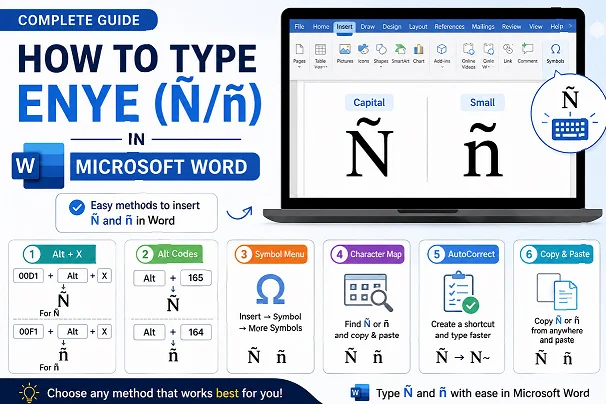
Method 6 – How to Type Enye in Word Using AutoCorrect
If you type the Enye frequently, AutoCorrect can automatically replace a custom shortcut with Ñ or ñ. This is one of the fastest long-term solutions for Microsoft Word users. How to Type Enye in Microsoft Word
Once configured, you only need to type a short code, and Word will instantly replace it with the Enye character.
Steps to Create an AutoCorrect Shortcut
- Open Microsoft Word.
- Click File → Options → Proofing.
- Select AutoCorrect Options.
- In the Replace box, type a shortcut such as /enye.
- In the With box, enter Ñ or ñ.
- Click Add, then OK.
Advantages
- Saves time while typing
- No Alt codes to remember
- Perfect for frequent Word users
- Works in all future documents
Method 7 – How to Type Enye in Word Using the International Keyboard
The United States–International Keyboard lets you type the Enye directly without opening menus or copying symbols. It is an excellent option if you often write in Spanish or Filipino. How to Type Enye in Microsoft Word
After enabling the keyboard, you can type the Enye using simple key combinations inside Microsoft Word.
How to Enable It
- Open Windows Settings.
- Go to Time & Language.
- Click Language & Region.
- Select your language.
- Choose Language Options.
- Add the United States–International Keyboard.
Keyboard Shortcuts
| Character | Shortcut |
| ñ | Right Alt + N |
| Ñ | Right Alt + Shift + N |
Some keyboard layouts also allow:
~ + N = Ñ
Benefits
- Best for daily typing
- No need to open Symbol menu
- Faster than copy and paste
- Ideal for bilingual users
Method 8 – Copy and Paste the Enye Symbol in Word
If you only need the Enye occasionally, copying and pasting is the quickest solution. Simply copy the character below and paste it wherever you need it. How to Type Enye in Microsoft Word
Characters to Copy
Capital Enye
Ñ
Small Enye
ñ
You can paste them into:
- Microsoft Word
- Excel
- PowerPoint
- Outlook
- Google Docs
- PDF editors
Advantages
- Works instantly
- No shortcuts required
- Suitable for beginners
- Compatible with all Word versions
Common Problems When Typing Enye in Microsoft Word
Sometimes the Enye may not appear correctly because of keyboard settings or incorrect shortcuts. Most problems can be fixed within a few minutes. How to Type Enye in Microsoft Word
The table below lists the most common issues and their solutions.
| Problem | Solution |
| Alt code doesn’t work | Enable Num Lock and use the numeric keypad. |
| Alt + X doesn’t convert | Type the Unicode first, then press Alt + X. |
| Wrong character appears | Check that you entered 00D1 or 00F1 correctly. |
| Symbol not visible | Open Insert → Symbol → More Symbols. |
| Keyboard shortcut fails | Try the International Keyboard or Character Map. |
Word Enye Shortcut Comparison Table
Each method has its own advantages depending on your keyboard and workflow.
| Method | Numpad Required | Difficulty | Best For |
| Alt + X | ❌ | Easy | Microsoft Word users |
| Alt Codes | ✅ | Easy | Desktop keyboards |
| Symbol Menu | ❌ | Easy | Beginners |
| Character Map | ❌ | Easy | All Windows users |
| AutoCorrect | ❌ | Easy | Frequent typing |
| International Keyboard | ❌ | Medium | Spanish & Filipino typing |
| Copy & Paste | ❌ | Very Easy | Occasional use |
Which Method Is the Fastest?
The best method depends on how often you type the Enye in Microsoft Word.
- Occasional users: Copy and Paste
- Most Microsoft Word users: Alt + X
- Desktop keyboards: Alt Codes
- Frequent typing: AutoCorrect
- Spanish or Filipino writers: International Keyboard
(FAQs)
How do I type Ñ in Microsoft Word?
Type 00D1, then press Alt + X. You can also use Alt + 165 if your keyboard has a numeric keypad. How to Type Enye in Microsoft Word
How do I type ñ in Word?
Type 00F1, then press Alt + X, or use Alt + 164 with a numeric keypad.
Does Alt + X only work in Microsoft Word?
Yes. The Alt + X Unicode shortcut is a built-in Microsoft Word feature.
Can I insert the Enye from the Symbol menu?
Yes. Go to Insert → Symbol → More Symbols, then select Ñ or ñ.
Conclusion
Learning how to type Enye in Microsoft Word is simple once you know the available shortcuts. Whether you use Alt + X, Alt codes, the Symbol menu, Character Map, AutoCorrect, or the International Keyboard, Microsoft Word provides several easy ways to insert Ñ and ñ accurately.
For most users, Alt + X is the fastest and most convenient method because it doesn’t require a numeric keypad. If you type the Enye regularly, setting up AutoCorrect or the International Keyboard can save even more time. Choose the method that best fits your workflow and enjoy faster, more accurate typing in Microsoft Word. How to Type Enye in Microsoft Word