Learn how to type enye in Excel using Alt codes, shortcuts, Unicode, Character Map, and copy-paste methods for Ñ and ñ in Excel and Google Sheets.
Introduction
If you need to know how to type enye in Excel, there are several easy methods you can use. You can enter Ñ and ñ with Alt codes, Excel formulas, Character Map, keyboard methods, or simple copy-paste.
This guide explains how to type enye in Excel and Google Sheets step by step, including methods for laptops without a numeric keypad.
How to Type Enye in Excel
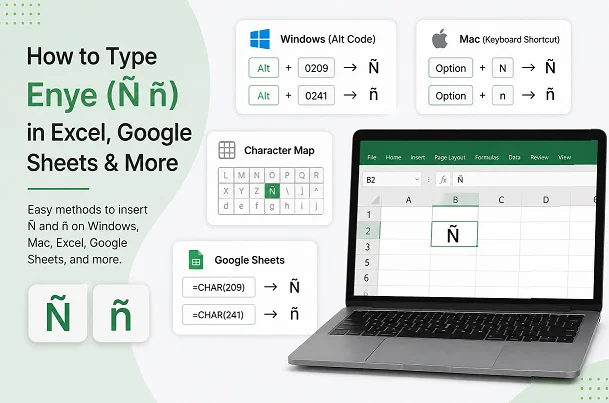
Learning how to type enye in Excel is simple when you use the correct keyboard method. Windows users can enter the enye character with an Alt code if their keyboard has a numeric keypad.
To type lowercase ñ in Excel, select a cell and hold the Alt key while typing 0241 on the numeric keypad. Release the Alt key and Excel should display ñ.
For uppercase Ñ, hold Alt and type 0209 on the numeric keypad. Release Alt to insert Ñ into the selected Excel cell. How to Type Enye in Excel and Google Sheets
Excel Enye Alt Codes
- ñ = Alt + 0241
- Ñ = Alt + 0209
These Alt codes are useful when you frequently need to type Spanish names, locations, words, or other text containing the enye.
How to Insert ñ in Excel
Another easy way to insert ñ in Excel is to copy the character and paste it directly into a cell. This method is particularly useful when your keyboard does not have a numeric keypad.
Copy the lowercase enye here:
ñ
Then open Excel, select the required cell, and press Ctrl + V. You can use exactly the same method to insert the capital character Ñ.
If you only need the character occasionally, copy and paste is one of the quickest answers to how to type enye in Excel.
Excel Enye Shortcut
There is no single universal Excel shortcut that inserts Ñ or ñ on every keyboard. However, Windows Alt codes work as a convenient Excel enye shortcut when a numeric keypad is available.
Use these shortcuts:
| Character | Excel Shortcut |
|---|---|
| ñ | Alt + 0241 |
| Ñ | Alt + 0209 |
If your laptop does not have a numeric keypad, don’t worry. You can use copy-paste, Character Map, or an Excel Unicode formula instead.
For regular spreadsheet work, knowing more than one method makes how to type enye in Excel much easier.
Enye Alt Code in Excel
The enye Alt code in Excel depends on whether you want lowercase or uppercase.
Lowercase ñ
Alt + 0241 → ñ
Uppercase Ñ
Alt + 0209 → Ñ
To use an Alt code, first click the Excel cell where you want the character. Hold the Alt key, enter the code using the numeric keypad, and then release Alt.
If the character does not appear, check that you are using the numeric keypad rather than the number row above the letters. On many laptops, traditional Alt codes will not work without a dedicated or activated numeric keypad. How to Type Enye in Excel and Google Sheets
How to Type Small Enye in a Spreadsheet
The small enye (ñ) is commonly used in Spanish names, places, and words. You can add it to an Excel or Google Sheets cell using an Alt code, copy-paste, or a Unicode formula. How to Type Enye in Excel and Google Sheets
For Excel, the simplest Alt code is:
Alt + 0241 → ñ
You can also copy the character directly:
ñ
Knowing how to type enye in Excel is especially useful when creating customer lists, addresses, names, product information, or multilingual spreadsheets. How to Type Enye in Excel and Google Sheets
How to Type Capital Enye in Excel
If you need the capital enye (Ñ), Excel supports several simple methods. The Windows Alt code for uppercase enye is: How to Type Enye in Excel and Google Sheets
Alt + 0209 → Ñ
Click an Excel cell, hold the Alt key, type 0209 using the numeric keypad, and release Alt.
You can also copy the capital enye from here:
Ñ
This method is useful for names and words that begin with or require an uppercase Ñ. If you frequently work with Spanish text, learning how to type enye in Excel can save time.
How to Type ñ in Google Sheets
You can also type ñ in Google Sheets using copy-paste, your operating system’s keyboard tools, or the UNICHAR() function. How to Type Enye in Excel and Google Sheets
The easiest option is to copy:
ñ
Then open Google Sheets, select a cell, and press Ctrl + V.
Google Sheets also supports the Unicode character through a formula:
=UNICHAR(241)This returns:
ñ
For uppercase enye, use:
=UNICHAR(209)This returns:
Ñ
The same Unicode formula approach is useful when you want a repeatable way to enter special characters in spreadsheet data. How to Type Enye in Excel and Google Sheets
How to Type Enye on a Laptop in Excel
If you are trying to learn how to type enye in Excel on a laptop, your available options depend on the keyboard. How to Type Enye in Excel and Google Sheets
Laptop With Numeric Keypad
If your laptop has a numeric keypad, you can use:
- Alt + 0241 → ñ
- Alt + 0209 → Ñ
Laptop Without Numeric Keypad
If your laptop does not have a dedicated number pad, use one of these alternatives:
- Copy and paste ñ or Ñ
- Use Windows Character Map
- Use an appropriate keyboard layout
- Use Excel’s
UNICHAR()formula - Copy the character from another document
For most laptop users, the easiest method is simply to copy ñ and paste it into Excel.
Unicode Enye in Excel
Unicode provides a standard way to represent special characters such as Ñ and ñ. The Unicode values for the enye are: How to Type Enye in Excel and Google Sheets
| Character | Unicode |
| ñ | U+00F1 |
| Ñ | U+00D1 |
In Excel, you can use the UNICHAR() function to generate these characters directly.
For lowercase enye:
=UNICHAR(241)For uppercase enye:
=UNICHAR(209)This is one of the most useful methods when you want to know how to type enye in Excel without a numeric keypad.
Why Use UNICHAR?
The UNICHAR() function is useful when working with formulas, automated spreadsheets, or large amounts of multilingual data. Instead of manually entering every special character, you can generate the character from its Unicode number. How to Type Enye in Excel and Google Sheets
How to Copy and Paste ñ in a Spreadsheet
If you need a fast method, copy and paste ñ in a spreadsheet. This works in both Excel and Google Sheets and does not require you to remember an Alt code. How to Type Enye in Excel and Google Sheets
Small Enye
ñ
Capital Enye
Ñ
Both Characters
Ñ ñ
To copy and paste the character:
- Highlight ñ or Ñ.
- Press Ctrl + C.
- Open Excel or Google Sheets.
- Select the destination cell.
- Press Ctrl + V.
Copy-paste is often the easiest solution when you are learning how to type enye in Excel on a laptop without a numeric keypad. How to Type Enye in Excel and Google Sheets
How to Type Enye in Excel Without a Numpad
If your keyboard does not include a numeric keypad, you still have several options. You do not need to buy a separate keyboard just to type Ñ or ñ. How to Type Enye in Excel and Google Sheets
The easiest solution is copy-paste:
ñ Ñ
You can also use Excel’s UNICHAR() function:
=UNICHAR(241)for lowercase ñ, and:
=UNICHAR(209)for uppercase Ñ.
Windows Character Map is another useful option. Search for Character Map from the Windows Start menu, find Ñ or ñ, copy the character, and paste it into Excel. How to Type Enye in Excel and Google Sheets
How to Type Enye Using Character Map
Windows Character Map provides a simple graphical way to find special characters. It is useful when you don’t remember the Alt code or your laptop does not have a numeric keypad. How to Type Enye in Excel and Google Sheets
Follow these steps:
- Press Windows + S.
- Search for Character Map.
- Open the Character Map application.
- Find ñ or Ñ.
- Select the character.
- Click Select.
- Click Copy.
- Open Excel or Google Sheets.
- Paste the character with Ctrl + V.
Character Map is especially helpful for users who need several special characters, not just the enye.
Enye Characters You Can Copy
If you need the characters immediately, you can copy them below.
Small Enye: ñ
Capital Enye: Ñ
Both: Ñ ñ
“You can paste these characters into Excel, Google Sheets, Microsoft Word, emails, forms, websites, and other applications.”
You can paste these characters into Excel, Google Sheets, Microsoft Word, emails, forms, websites, and other applications.
Enye Alt Codes and Unicode
Here is a quick reference for the most important enye codes:
| Character | Alt Code | Unicode | Excel Formula |
| ñ | Alt + 0241 | U+00F1 | =UNICHAR(241) |
| Ñ | Alt + 0209 | U+00D1 | =UNICHAR(209) |
The Alt codes are convenient on Windows keyboards with numeric keypads, while UNICHAR() is particularly useful inside Excel formulas. How to Type Enye in Excel and Google Sheets
Best Method for Typing Enye
The best method depends on the device you are using and how frequently you need Ñ or ñ.
| Method | Excel | Google Sheets | Best For |
| Alt Code | Yes | Through Windows input | Numeric keypad |
| Copy & Paste | Yes | Yes | Quick use |
| Character Map | Yes | Yes | No numpad |
UNICHAR() | Yes | Yes | Formula-based entry |
| Keyboard Layout | Yes | Yes | Frequent typing |
If you only need the enye occasionally, copy-paste is the fastest choice. If you work with multilingual spreadsheets regularly, a keyboard layout or UNICHAR() can be more convenient. How to Type Enye in Excel and Google Sheets
Common Problems When Typing Enye
Alt Code Does Not Work
If an Alt code does not work, make sure you are using the numeric keypad. Traditional Windows Alt codes generally do not work from the regular number row.
Laptop Has No Numeric Keypad
Use copy-paste, Character Map, or the UNICHAR() formula. These methods are much easier on laptops without a dedicated number pad.
Ñ Looks Different
The appearance of Ñ or ñ can vary slightly between fonts. This is normal and does not mean that the character is incorrect. How to Type Enye in Excel and Google Sheets
Character Changes After Import
If you import spreadsheet data from another application, use Unicode-compatible formats and applications so characters such as Ñ and ñ are preserved correctly.
Conclusion
Learning how to type enye in Excel does not require complicated software or special tools. You can use Windows Alt codes, Excel’s UNICHAR() function, Character Map, keyboard layouts, or simple copy-paste methods.
For lowercase ñ, use Alt + 0241 or =UNICHAR(241). For uppercase Ñ, use Alt + 0209 or =UNICHAR(209). If you are working on a laptop without a numeric keypad, copy-paste and UNICHAR() are convenient alternatives.
Whether you use Excel or Google Sheets, these methods make it easy to add Ñ and ñ to names, addresses, Spanish words, and multilingual spreadsheet data.t. How to Type Enye in Excel and Google Sheets
Frequently Asked Questions
How do I type enye in Excel?
Use Alt + 0241 for lowercase ñ or Alt + 0209 for uppercase Ñ on Windows with a numeric keypad. You can also copy and paste the character.
What is the Alt code for ñ in Excel?
The Windows Alt code for lowercase ñ is Alt + 0241.
What is the Alt code for capital Ñ?
The Windows Alt code for uppercase Ñ is Alt + 0209.
How do I type ñ in Google Sheets?
Copy ñ and paste it into a Google Sheets cell. You can also use your operating system’s keyboard or character-input tools.
What is the Unicode for ñ?
The Unicode code point for lowercase ñ is U+00F1, while uppercase Ñ is U+00D1.